How to Merge Two Large Spreadsheets by a Shared Column (No VLOOKUP, No Formulas)
The quick answer
To merge two spreadsheets, you need a shared column that appears in both files (like an email, customer ID or SKU). You can then narrow the result down to the list you actually need, like filtering for only orders from the last 30 days, removing duplicate customers, or showing only customers in Florida.
There are several ways to do this, but the core steps are the same in any tool:
- Find the column both files share.
- Decide which rows to keep.
- Merge the files.
- Check how many rows matched, and look at the ones that didn't.
With a few hundred rows, Excel's XLOOKUP handles this fine. With 200,000 rows, column names that don't quite match and a few thousand values that differ slightly, it becomes a different problem. This guide walks through one real example of that, done in TenMil.
What does it mean to merge by a shared column?
A merge connects rows in two files using a value that appears in both. Say you have:
- a payments file with email, amount and date
- a CRM file with email, company and plan
Because both contain the customer's email, you can attach the company and plan to each payment. The email is the shared column, sometimes called the join key. Customer IDs, order numbers and SKUs work the same way. Without a shared column, there is no way to combine the two spreadsheets in a meaningful way.
A real example: 195,626 payments and 35,000 CRM accounts
I've run into this problem over and over in operations and diligence work. The data you need exists, but it's split across exports from different systems, with slightly different formats and no clean way to connect them.
Here's a typical version. A marketing manager wants to give sales a list of customers who have made large individual purchases, so they can reach out personally. The data is in two exports:
| File | Rows | What it contains |
|---|---|---|
| charges_export_60d | 195,626 | Every card charge: amount, date, status, customer email |
| accounts_crm_clean | 35,000 | Customer accounts: company, plan, owner, monthly revenue, email |
The payments file says what people bought. The CRM says who they are. The email address connects the two, except that one file calls the column "e-mail" and the other calls it "email."
At this size, lookups in Excel get slow and fragile, so I'll do the merge in TenMil, the tool I built exactly for this kind of job. The four steps from the quick answer would be the same in any tool, but how a tool accomplishes this, and the level of technical expertise required, varies widely.
The screens below show how to do this in TenMil. It runs on a database engine, so merges this large finish in seconds, and you don't have to write any formulas.
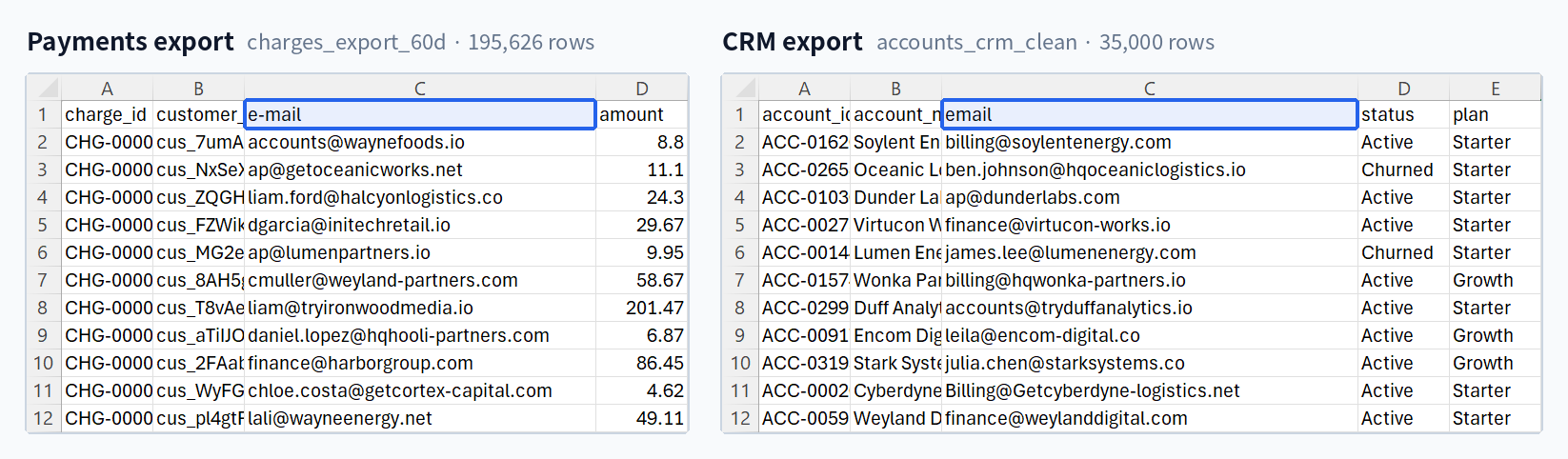
Step 1: Identify the column that connects the files
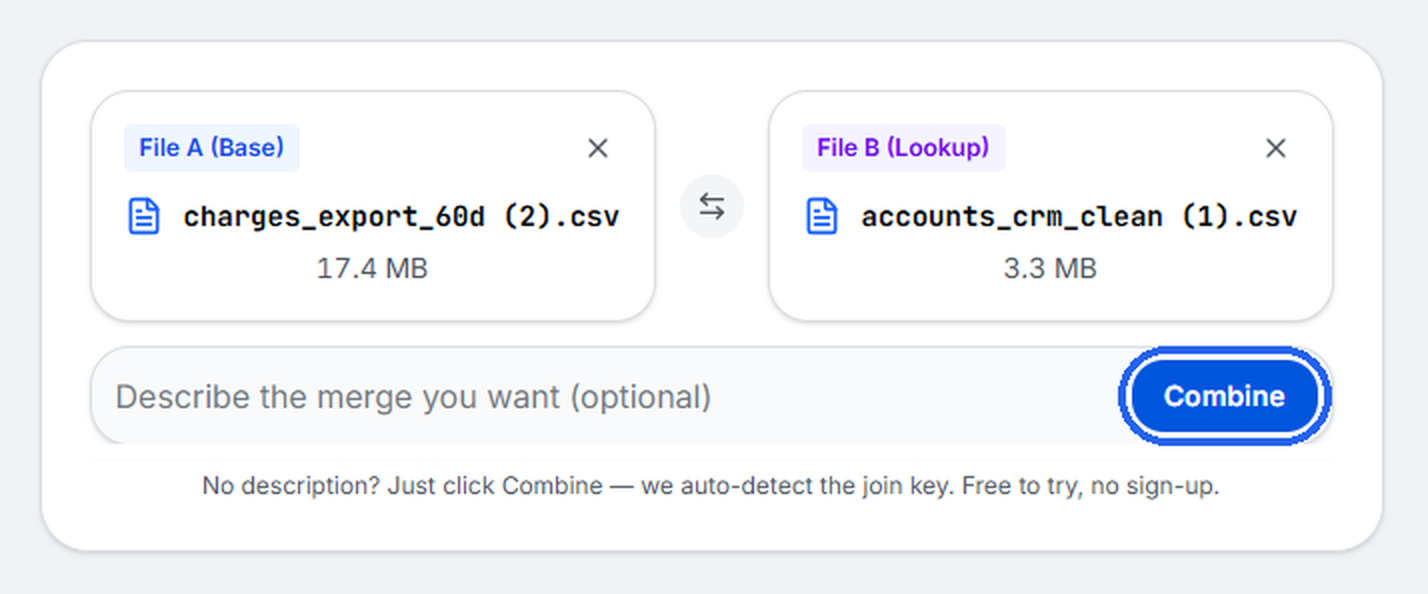
Upload both files at tenmil.ai. They can total up to 350 MB, and CSV and Excel files can be mixed. The first file is the one whose rows you want to keep, which here is the payments export. The second file, the CRM export, adds the customer details to each row.
Then click Combine. You can describe the merge in the text box, but I left it blank to see what TenMil would pick. It matched "e-mail" in the payments file to "email" in the CRM file. If it picks the wrong column, you can add text instructions to tell it which one to use.
Step 2: Decide which rows to keep
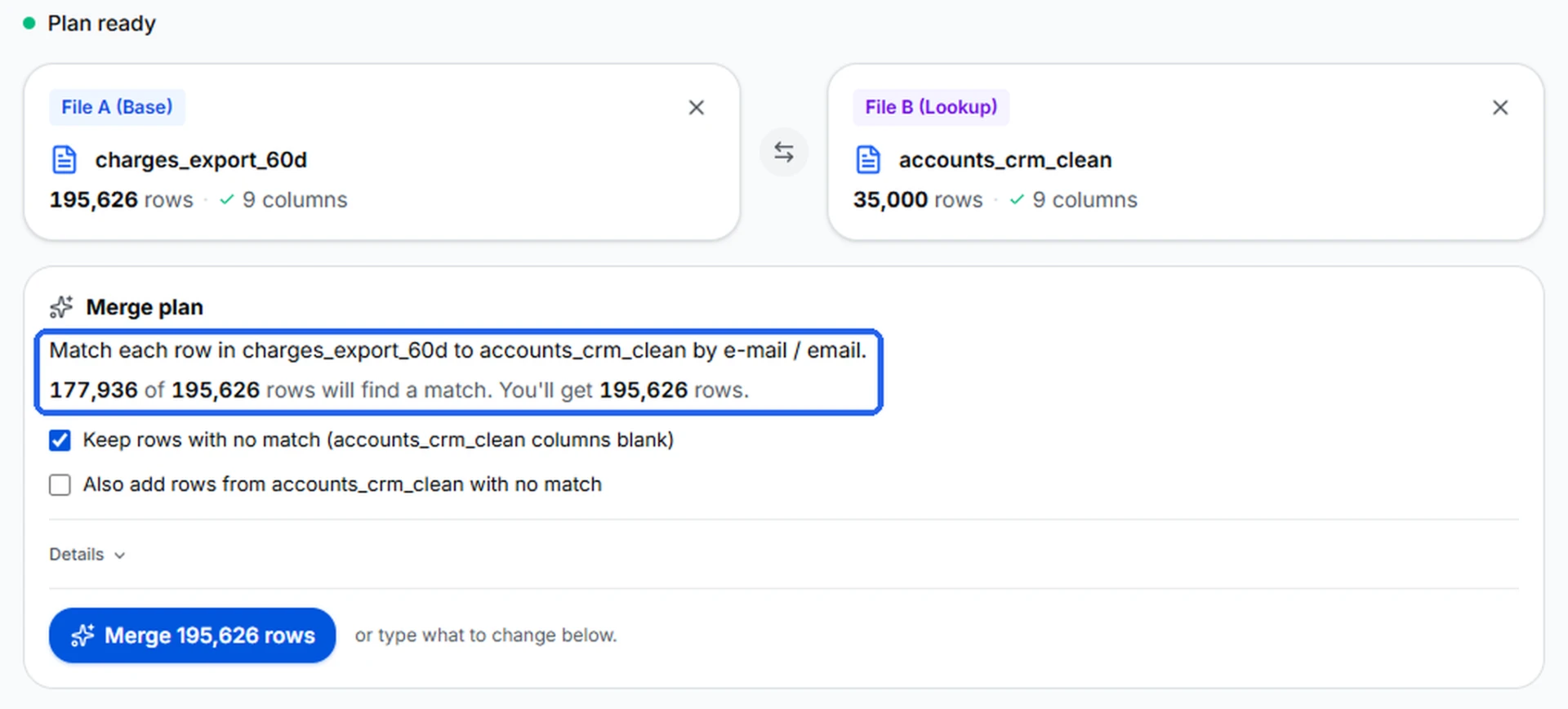
Before merging, you need to decide what happens to payments that don't match a CRM account. For a sales list, I want to keep them for now. A large payment from someone who isn't in the CRM is still worth knowing about.
TenMil lays this out as a plan before anything runs:
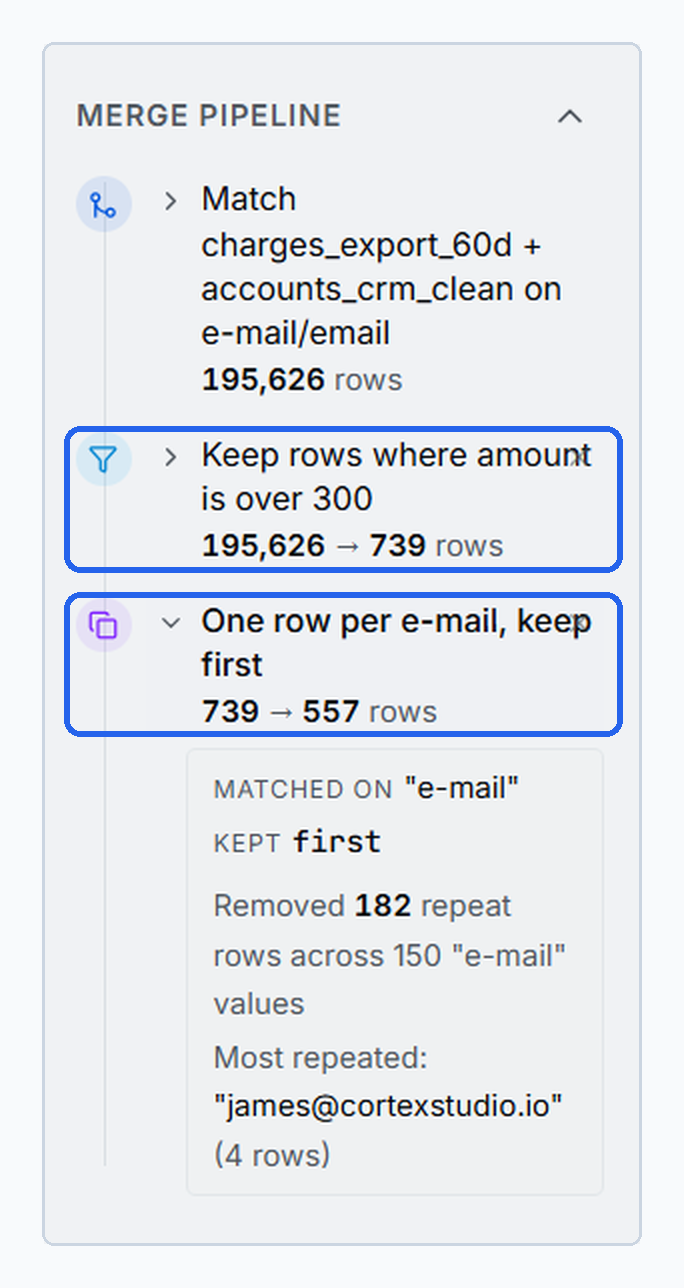
Match each row in charges_export_60d to accounts_crm_clean by e-mail / email. 177,936 of 195,626 rows will find a match. You'll get 195,626 rows.
There are two options underneath: keep payments with no match (on by default), or also add CRM accounts that have no payments.
If you know SQL, these choices map to join types:
- Keep every row from the first file: a left join
- Keep rows from both files: a full outer join
- Keep only rows that matched: an inner join
Step 3: Merge the files and check the matches
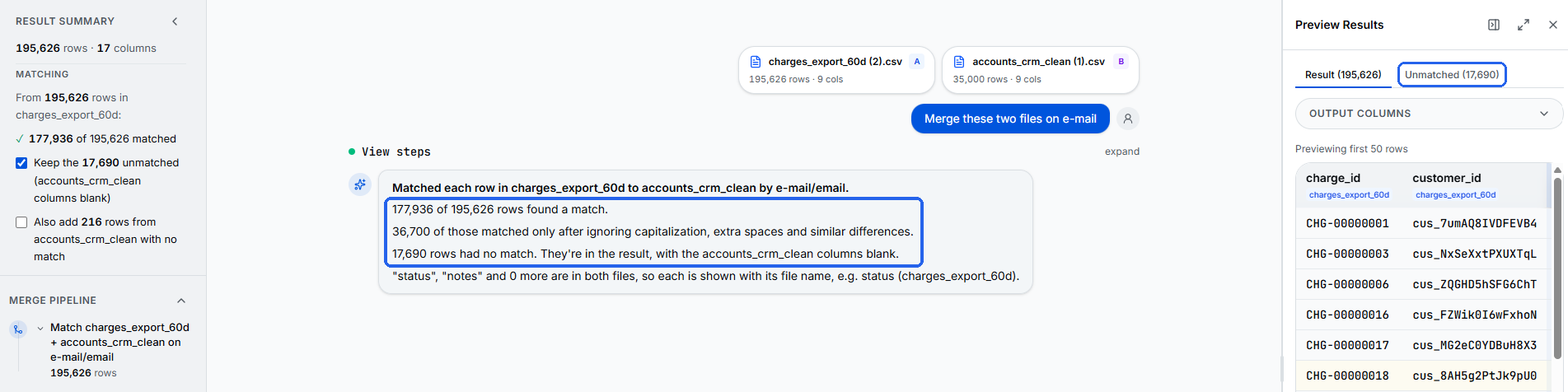
I clicked Merge. The merge itself took a few seconds, and TenMil reported what happened:
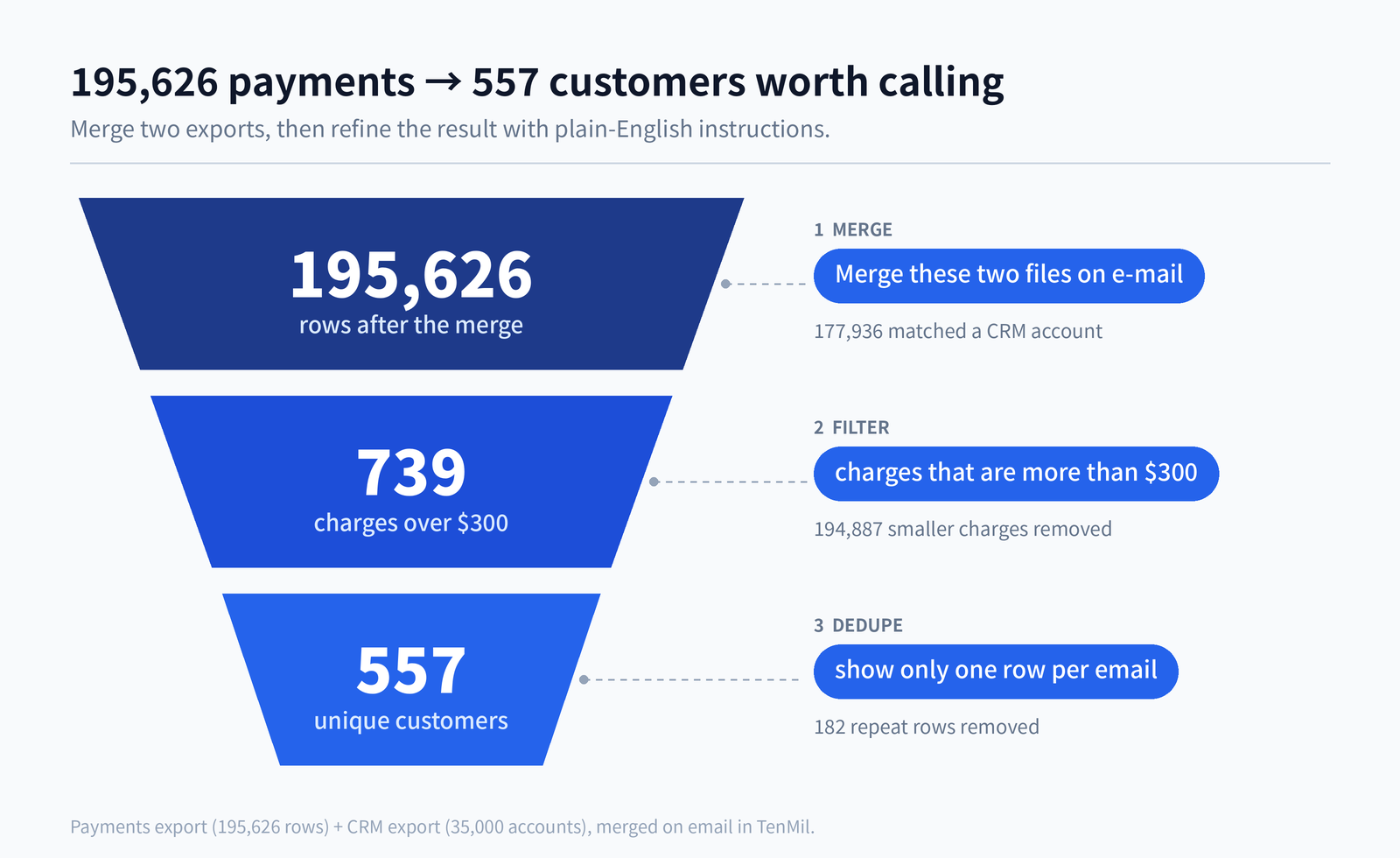
- 177,936 of 195,626 payments matched a CRM account, about 91%.
- 17,690 payments had no match. They're still in the result, with the CRM columns blank.
- 36,700 of the matches only worked after ignoring capitalization and extra spaces.
The match rate is the first thing I check after any merge. If I expected nearly every payment to belong to a CRM account and only half matched, I'd stop and investigate before building anything on top of it. Here, 91% is plausible.
The 17,690 unmatched rows are worth a quick look too, in the Unmatched tab. They could be customers who never made it into the CRM, or people who paid with a different email than the one on file.
Two smaller details: columns that exist in both files, like "status" and "notes," are labeled with their file name so neither gets overwritten, and you can hide, reorder or rename columns before exporting.
Step 4: Turn the merged data into the list sales needs
The merge is done, but 195,626 payment records isn't a practical call list for the sales team.
In this case, sales only cares about customers who are making very large purchases, so I typed:
charges that are more than $300
That left 739 rows.
Now there's another problem. Some customers made several large payments, and sales shouldn't contact the same person twice. So I typed:
show only one row per email
That left 557 rows, one per customer. Where an email appeared more than once, TenMil kept the first row, and it pointed out one address that had appeared 4 times, which is a useful sanity check.
Each instruction becomes a specific operation, a filter and then a dedupe, which runs on the full merged file and shows up as a step in the merge pipeline. So you can always see exactly what was applied.
Step 5: Export the list
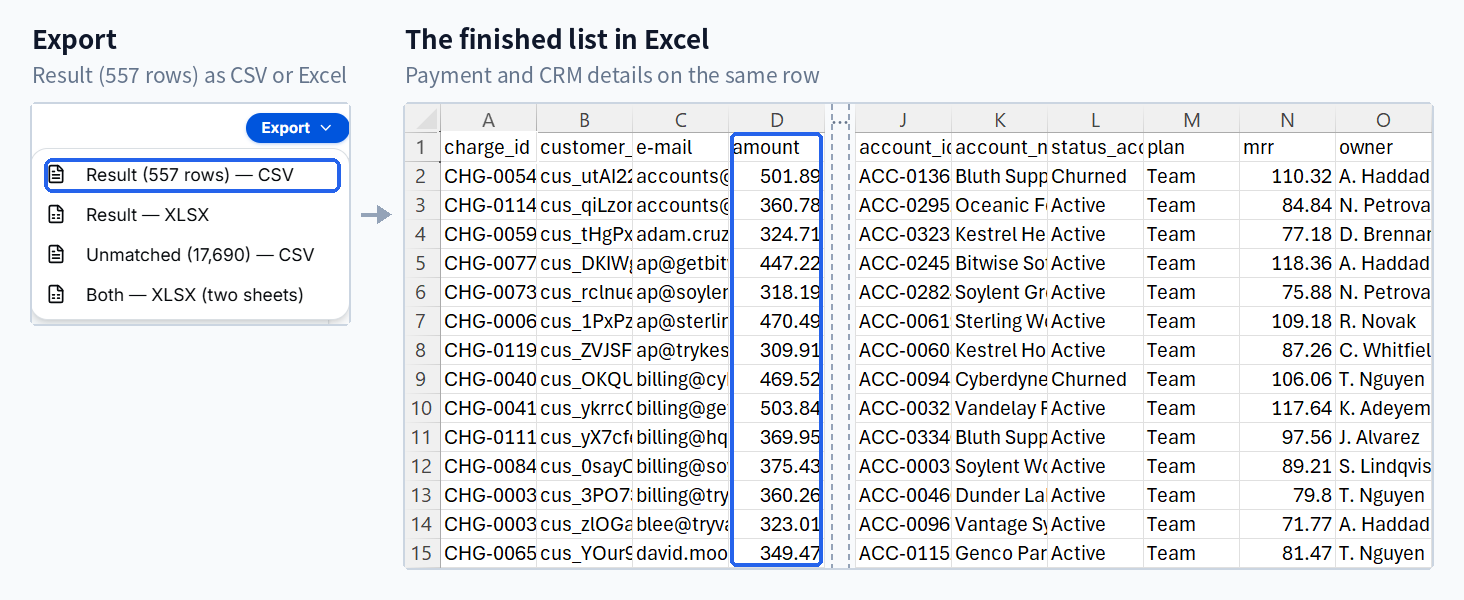
Click Export and choose CSV or Excel. You can export the result, the unmatched rows, or both on separate sheets. The first download asks for your email, and free accounts get 3 downloads a day. Your original files aren't changed.
The finished file has 557 customers, each with a qualifying payment and their CRM details on the same row.
What if the values don't match exactly?
Matching fails when values look the same but aren't. The usual causes:
- capitalization, like
Billing@Example.comin one file andbilling@example.comin the other - extra spaces, such as a trailing space after an email
- hidden characters or formatting left over from an export
Whether a tool catches these depends on the tool and how it's set up. Cleaning them up before matching is usually called data normalization.
In this example, TenMil ignored capitalization and extra spaces when matching, and 36,700 of the matches depended on it. Without that, those payments would have come through with no customer attached.
Normalization can't fix everything, though. If a customer used a completely different email in each system, nothing will match them on email. For that, you need a shared ID.
Other examples
A few other pairs of files where the same approach works:
- Finance: match an invoice export from QuickBooks or Xero to a payments export by invoice number, then export the unmatched invoices to see who still owes you.
- HR: match your employee list to a benefits enrollment export by employee ID to find everyone who hasn't enrolled yet.
- Marketing: match event or webinar registrants to your CRM by email to find new leads that aren't in your CRM yet.
- Inventory: match your product catalog to a supplier's latest price list by SKU to spot products the supplier no longer carries.
Which approach should you use?
It depends on the size of your files and how comfortable you are with formulas or code.
| Approach | Best when |
|---|---|
| XLOOKUP or VLOOKUP | The files fit comfortably in Excel and you need to pull a few columns from one sheet into another |
| Power Query | You repeat the same multi-step merge in Excel regularly and don't mind the setup |
| SQL or Python | You're comfortable writing queries or code, or the merge is part of a larger workflow |
| Excel Copilot | You already work in Excel and want AI help with smaller files |
| TenMil | The files are too big or messy for Excel and you'd rather describe the merge and cleanup in plain English |
FAQ
What column should I use to match the files?
A value that identifies the same thing in both files and doesn't change often. A customer ID is best, then email. Names are a poor choice, because two people can share a name and one person can be written several ways.
What happens when some rows don't match?
That's your call. In TenMil, unmatched rows from the first file stay in the result with the second file's columns blank. You can also add unmatched rows from the second file, or export the unmatched rows on their own to review them.
What if the values aren't exactly the same?
TenMil ignores capitalization and extra spaces when matching. For bigger differences, like a customer using a different email in each system, you'll need a shared ID instead.
Can I merge an Excel file with a CSV?
Yes. Two CSVs, two Excel files or one of each all work, and you can download the result in either format.
Can I do this with files bigger than Excel can handle?
Excel sheets stop at 1,048,576 rows, and lookups slow down well before that. TenMil handles two files of up to 350 MB combined. The exact limit depends on the number of columns and the size of the cells, but for many spreadsheets that means millions of rows.
Is TenMil free?
Yes. You can upload files, run merges and preview the results without an account. Downloading the result takes an email address, and free accounts include 3 downloads a day. Pro is $10/month or $100/year for unlimited downloads.
Try it with your own files
Drop your two biggest, messiest files into TenMil.ai and see how many rows match before you merge anything. No account needed to start.